
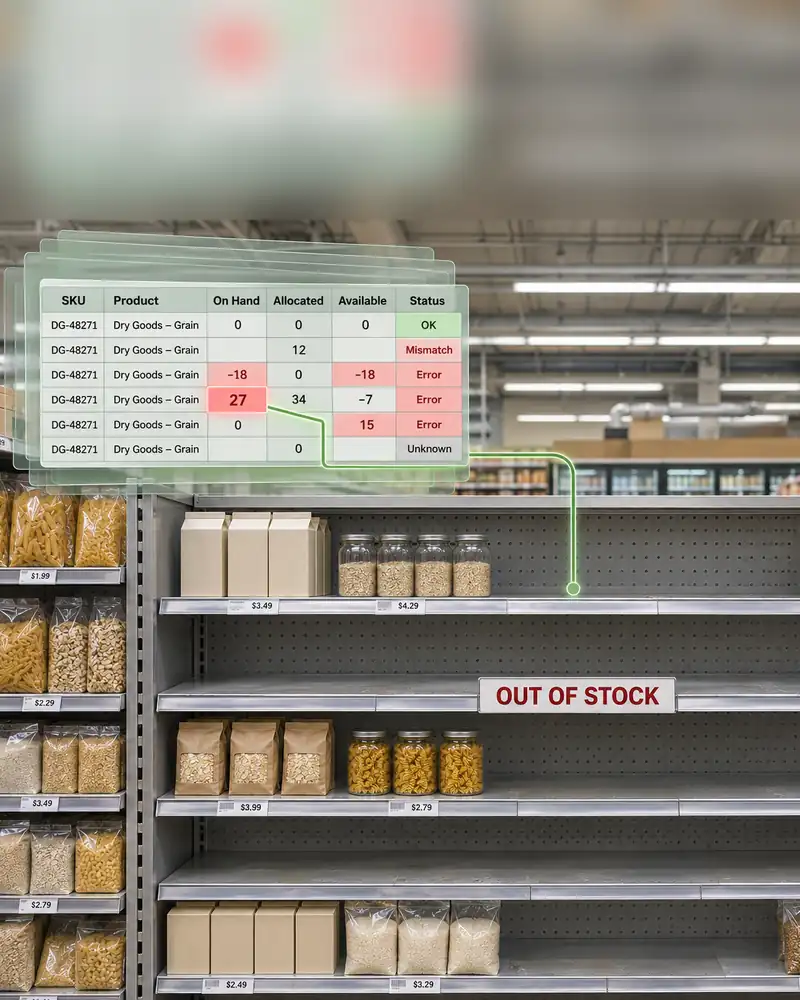


Take a 60-store chain that switches on automated ordering. Within a week, all 60 stores receive 48 units each of an item that sells three a day. That is 16 days of stock from one delivery. The case pack in the master data still says 48, while the supplier now ships in 12s.
To prevent automated replenishment failures caused by messy data, follow one test order from the stock record to the quantity sent to the supplier. Check which fields decide whether the order goes out, when stock arrives, and how many units the system orders. Then fill the gaps, test stock records for phantom stock, and start where the data already holds. Perfect data is not the bar. A short list of correct fields for the pilot SKUs is.
A planner catches bad data. An automated order passes it on
Manual ordering hides data errors because a planner reads every line before it goes out. When the suggested quantity for a slow mover jumps to 48, she frowns, checks the supplier's price list and types 12. Nobody records the fix. The wrong case pack stays in the master data for years.
Automation removes that human filter unless someone builds it back in. If orders go out without an exception check, the system reads the record, rounds the order to 48 and sends it. And it does this for every store at once, so one wrong field becomes 60 wrong deliveries.
Store data is less reliable than most head offices assume. Scandit surveyed 2,200 store associates for its Store Truth Gap report, published in November 2026. On average, they said the system matched the shelf only 46% of the time when they looked an item up. Treat that as accuracy as associates meet it on the floor, not an audit of every record.
Six checks show whether an automated order will be right
Start with six checks that affect whether the system orders, when stock arrives and how many units it suggests. When an order goes wrong, the forecast usually gets the blame because it is the visible part. The cause often sits one level lower, in the records the order is built from.
| Question | Field | What goes wrong | What the store sees |
|---|---|---|---|
| Will an order be created? | Supplier and order schedule | No active supplier, or a schedule missing or not confirmed for the store or distribution center | No order goes out |
| Will an order be created? | SKU status | A delisted item still marked active | Orders keep coming for stock nobody will buy |
| Will an order be created? | Stock record | Higher than what the store physically has | The order never triggers and the shelf stays empty |
| When will it arrive? | Lead time | The contract figure, not the real one | Stock runs out before the next delivery lands |
| How many units? | Case pack | Out of date or set to zero | Weeks of stock arrive at once, or the order cannot be rounded |
| How many units? | Minimum order quantity (MOQ) | Missing, or set per SKU when the supplier counts the whole order | The proposed order falls below what the supplier will accept |
How to get your data ready for automated ordering, step by step
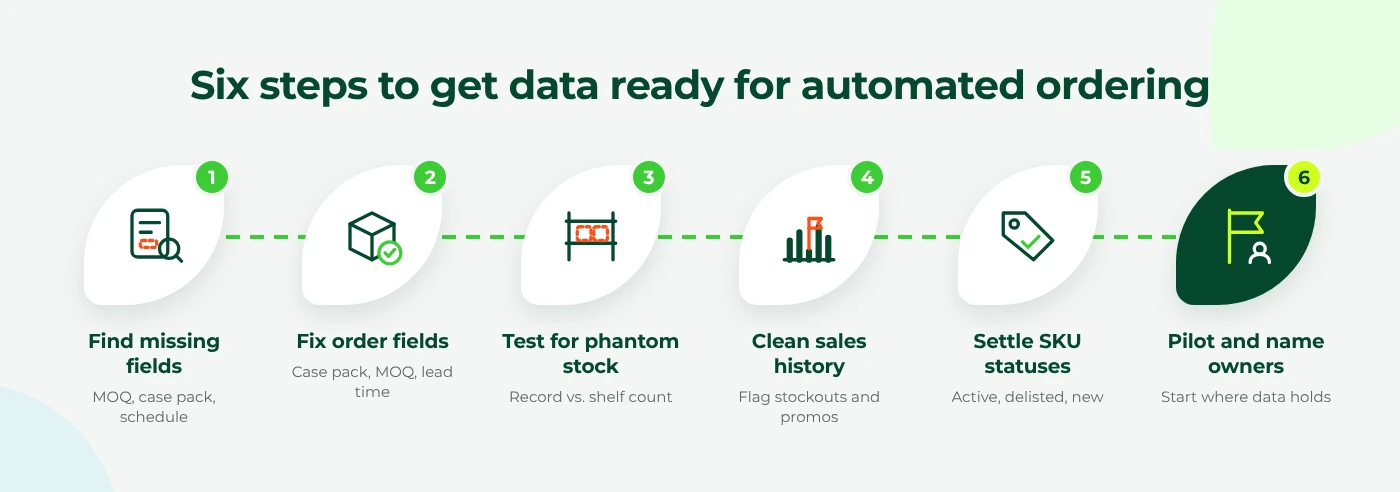
Step 1: Find the fields that are missing before you fix the ones that are wrong
Look for what is missing first, because missing values have to be requested from buyers or suppliers, and that takes time. Many retailers have no MOQ in their ERP at all: buyers kept it in their heads or in supplier emails. Find out whether each MOQ in your supply chain applies per SKU or to the whole order by value or weight. An MOQ set by weight needs correct item weights, and one set by value needs correct purchase prices.
Run the check per ordering route, not per SKU. Start with the SKUs, locations and suppliers in the pilot. For each route, list which required values are missing, which team owns them and where to confirm them. Flag the gaps that could block an order or change its timing or quantity. Then follow one order through the steps below and note where each field changes the result.
Step 2: Fix the fields that stop or distort an order
Fields that change the order quantity come next. Check the case pack for each item and supplier pair, then check that the order rounds to it. For the item in the opening, that means confirming the supplier ships in 12s and that a test order comes out as 12, not 48. Check the MOQ the same way: an MOQ of 6 and a case pack of 12 are both met by an order of 12.
Check lead times against delivery history, not against the contract. A supplier promising three days and delivering in five will leave a gap on the shelf every cycle. The data to fix it usually sits in receiving records already.
Step 3: Test stock records for phantom stock
Phantom stock is stock the record shows but the store does not have, on the shelf or in the backroom. It is the most damaging error for automated ordering, because it switches ordering off quietly. If the record says 15 and the order triggers below 12, no order goes out. With no sales, the record never falls, so the order never comes.
The simplest test looks for items that normally sell every day but have sold nothing for several days while the record shows stock. Send those SKUs to the store for a count of both the shelf and the backroom. If the physical count matches the stock record but the shelf is empty, the problem is shelf replenishment. If the count is lower than the record, the record is wrong, so look for the cause in the process. Deliveries accepted against the delivery note without scanning are one source. Fresh products that lose their look before they run out, and are never written off, are another. Theft and damage that nobody records are a third.
Count where errors cluster, not everywhere. A 2026 study in the Journal of Business Logistics covered about 24,000 SKUs in 11 grocery stores. Record errors were more frequent for perishable items, items with higher average stock and items restocked more often. A September 2026 ECR Retail Loss report went further, using more than 1.3 million stock-audit observations from six grocery retailers. Its authors found that many record errors are predictable, and their model flagged more than 80% of phantom stock cases before major sales losses. So rank SKUs by risk and send the riskiest to the store first.
Step 4: Clean the sales history the forecast learns from
Sales history needs a different kind of cleaning, because the forecast reads it as demand. Days when the item was out of stock record zero sales even if shoppers came for it. Promotion days, one-off wholesale orders and unusual events inflate the average. Both distort the baseline the order is built on.
Flag those days rather than deleting them. Stockout days are the trickiest case, and we cover them in detail in how to forecast demand when stockouts hide actual sales.
Step 5: Settle SKU statuses before the first order
SKU statuses decide what the system is allowed to order, so they must be right on day one. Look for delisted items still marked active, active items with no supplier, and seasonal items with no season dates. A delisted item with stock left in the distribution center needs a sell-out plan, not a reorder.
New items need a status too. An item added last week has no history. Its first order should come from similar products, not from a number a store manager guessed.
Step 6: Pilot where the data holds and name an owner for each field
Pilot categories should be chosen by data readiness, not by importance. A good pilot is one non-fresh category across all stores, or one store without fresh. Every SKU in it should have a complete set of order fields. Pick items with a regular delivery cycle, so you can judge results in weeks rather than months.
Ordering from a distribution center to suppliers usually comes later, once store orders run cleanly. Fresh comes later too. It needs more fields, such as remaining shelf life and day-of-week demand, and errors there turn into write-offs within days.
Then give every field an owner. Buyers own case packs and MOQs, supply teams own lead times and order schedules, stores own stock records. Data that has no owner goes stale again within a few months.
What one wrong case pack costs across 60 stores
A single wrong field becomes expensive quickly once it runs through automated orders in every store. Take the item from the opening: it sells three units a day per store and is delivered every four days. Each delivery should bring about 12 units.
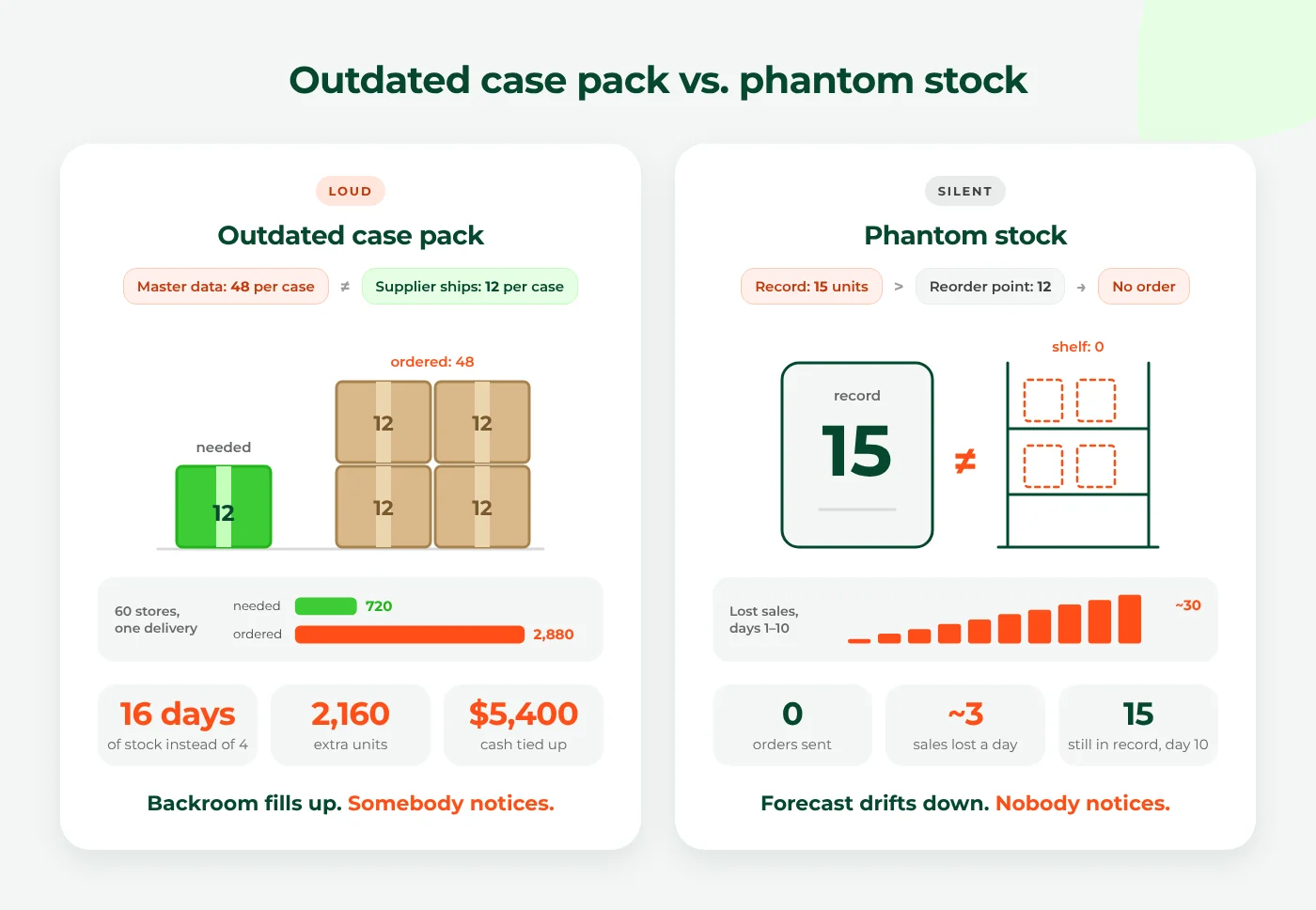
Scenario 1: an outdated case pack. The master data says 48 units per case. The supplier switched to cases of 12, but nobody updated the record. The system rounds every order up to 48 units, which is 16 days of sales instead of four.
| Per store | 60 stores | |
|---|---|---|
| Units needed per delivery | 12 | 720 |
| Units ordered | 48 | 2,880 |
| Extra units | 36 | 2,160 |
| Cash tied up at $2.50 per unit | $90 | $5,400 |
That is one SKU and one delivery. The store manager sees cases piled in the backroom and no reason for them.
Scenario 2: phantom stock. Now take the same item in one store, where the record shows 15 units but the store has no units on hand. The order triggers below 12, so nothing is ordered. The store keeps losing about three sales a day. Ten days later it has missed about 30 sales, and the record still says 15.
Scenario 1 is loud: somebody notices the backroom. Scenario 2 is silent, and the forecast drifts down while the shelf stays empty. That is why phantom stock belongs in the data check before go-live, not after the first complaints.
LEAFIO shows planners which records need attention before orders go out
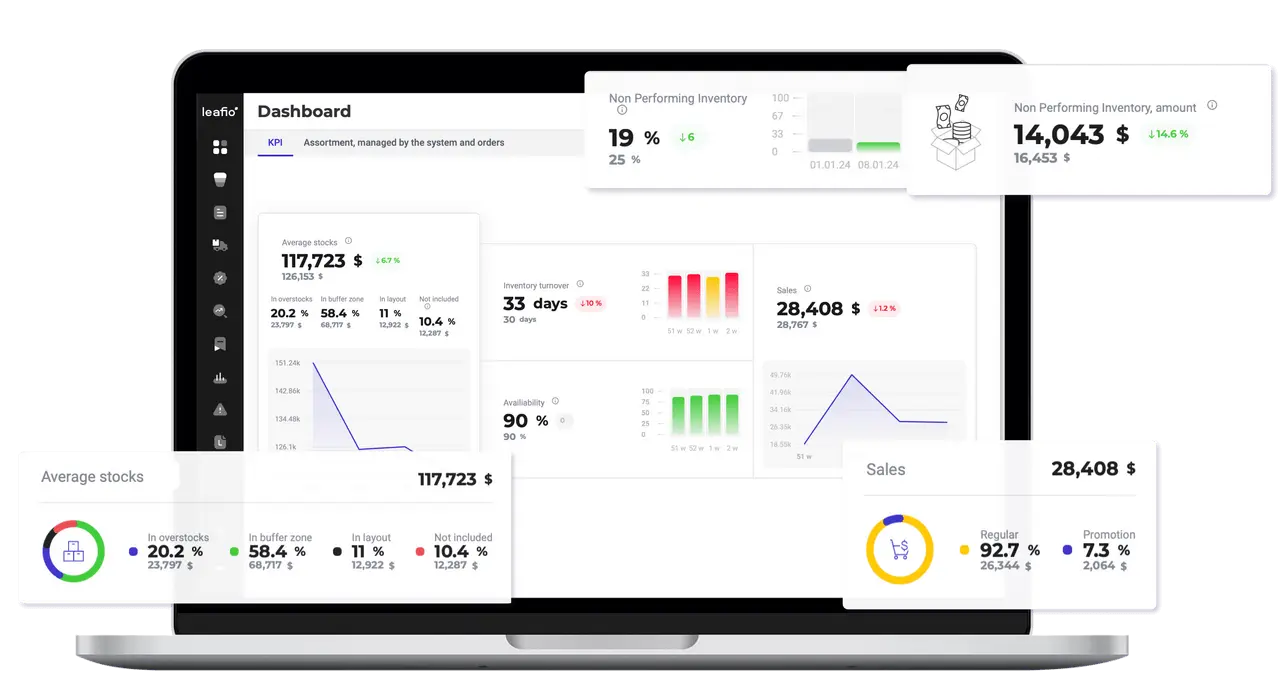
LEAFIO Inventory Optimization builds automated orders from a machine learning forecast. It does not send an order for an item that lacks the basics, such as a supplier or an order schedule. Records that look inconsistent are flagged for the planner, so bad numbers do not quietly turn into orders.
The forecast learns from the days that reflect real demand. Promotions, wholesale orders and unusual days are kept out of the demand history, and stockout days are corrected so they do not drag the forecast down.
Phantom stock gets its own signal. The module flags items with steady sales that stop selling while the record still shows stock. A store can then check that shelf instead of finding the gap days later.
Data arrives from the retailer's ERP, such as SAP, Oracle and others, through a scheduled exchange. LEAFIO does not replace the ERP. It runs automated replenishment on top of it. Planners start the day with a short list of what needs attention. That is management by exception: the planner reviews flagged lines, not every line.
A LEAFIO implementation starts with a review of order data, so gaps surface early. Pilot categories are chosen where the data is already complete. The first measurable results are usually seen after a one-month pilot, which is part of the implementation.
Daily, a Georgian grocery chain that reached 227 stores during the period covered by the case study, shows what this looks like in practice. The chain started with one pilot category, tobacco, before rolling out across the network. Its management treated current stock balances as a condition for correct orders. “To obtain up-to-date balances, we also made internal changes in operational business processes,” says George Turdzeladze, Executive Director at Daily. 99.5% of Daily's replenishment orders are generated automatically. That figure came with a full rollout, a distribution center connection and promotion planning, so the data work is one cause among several.
Some data problems are process problems, and cleaning them once will not hold
A one-off cleanup fails when the error is produced every day by the way stores work. If deliveries are accepted without scanning, stock records will drift again within weeks of a full count. If nobody writes off damaged fresh products, phantom stock will come back in the same categories. Cleaning the data before go-live treats the symptom.
So be honest about where you start. If stock records are unreliable across the whole chain, fix receiving and write-off discipline first, or begin with a distribution center where counts are tighter. Automating store orders on top of records nobody trusts will only produce wrong orders faster. And do not expect a magic threshold. There is no published accuracy level that makes a category safe to automate. A pilot on your own data is the only real test. If the business case itself is still open, start with whether switching from manual to automated replenishment pays off.
Some cleanup also continues after launch. Discrepancies surface during the pilot that nobody saw in a spreadsheet. The retailer's IT team needs to stay involved to trace them back to the source. Plan for that time instead of treating the launch as the finish line.
Automated replenishment fails on messy data when nobody decides which fields matter first. Check the fields that build the order, pilot where they hold, and give each one an owner.
FAQ
Do we need to clean all our data before automating replenishment?
No. You need complete and correct order fields for the SKUs in your pilot. That means case pack, MOQ, supplier, order schedule, lead time, status and a trustworthy stock record. Other categories can be cleaned while the pilot runs and added when their data is ready.
We are merging two chains or changing our ERP. Should we wait?
Not necessarily, but decide where the two data sets will be merged. Merging product codes and promotion history on your side, before the data is sent, avoids mismatches later. You can also start with categories where product codes are already mapped.
Who should own master data after go-live?
The team that creates the information should own the field. Buyers own case packs and MOQs, supply teams own lead times and schedules, and stores own stock records. A planner should flag errors, not be the only person who fixes them.


Have a question?

Jack Larson
Retail Optimization Expert